
Description
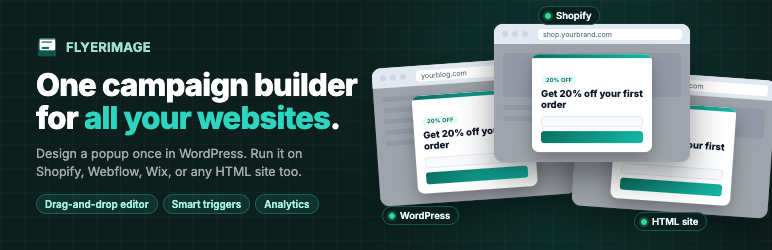
Design a popup once in your WordPress dashboard and run it everywhere you have a website: this WordPress site, your Shopify store, your Webflow landing pages, or a plain HTML page. One editor, one set of targeting rules, one analytics dashboard.
Built for agencies managing client sites, store owners with a blog and a shop on different platforms, and teams whose marketing site and product live in different places.
Run campaigns on any website
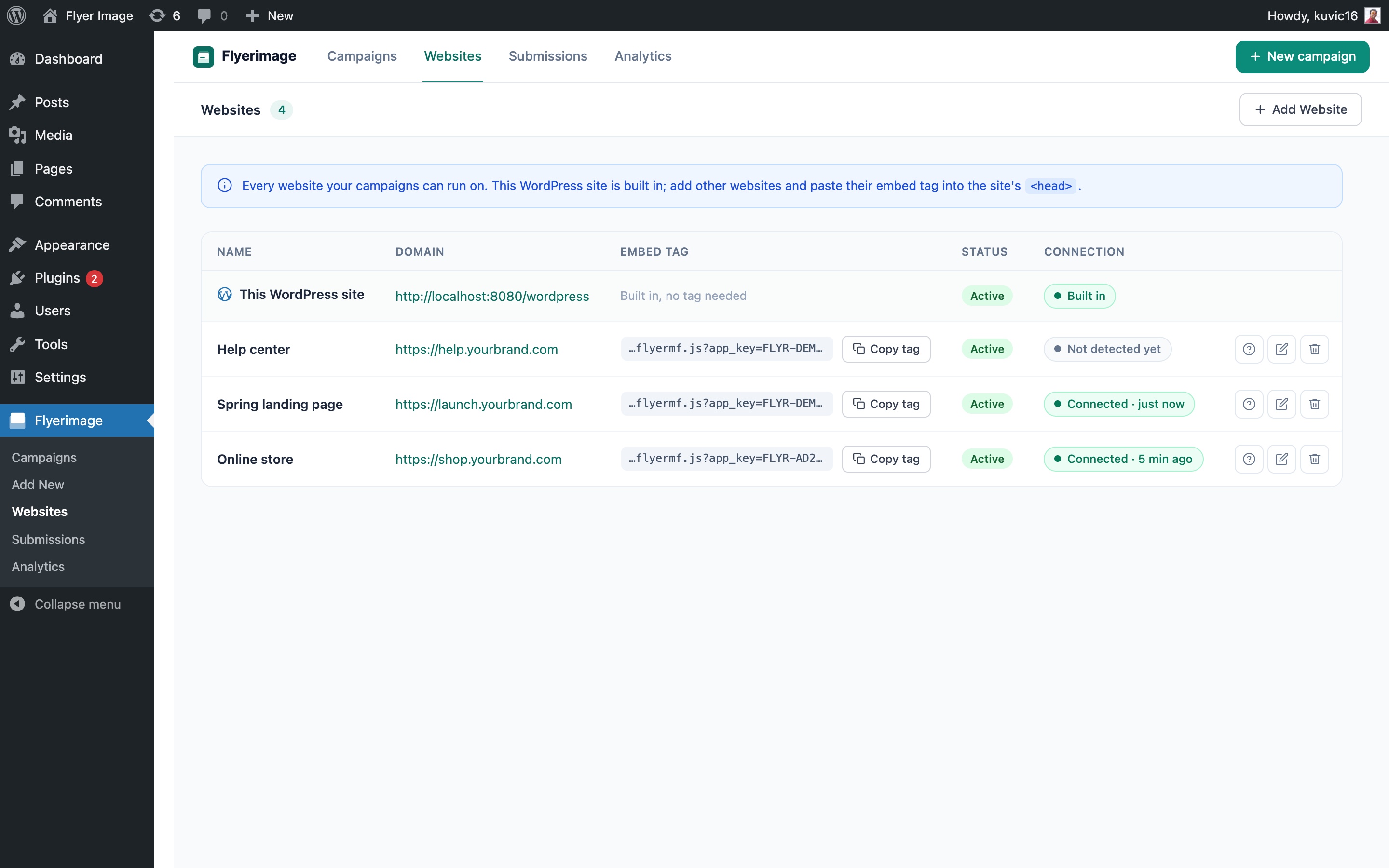
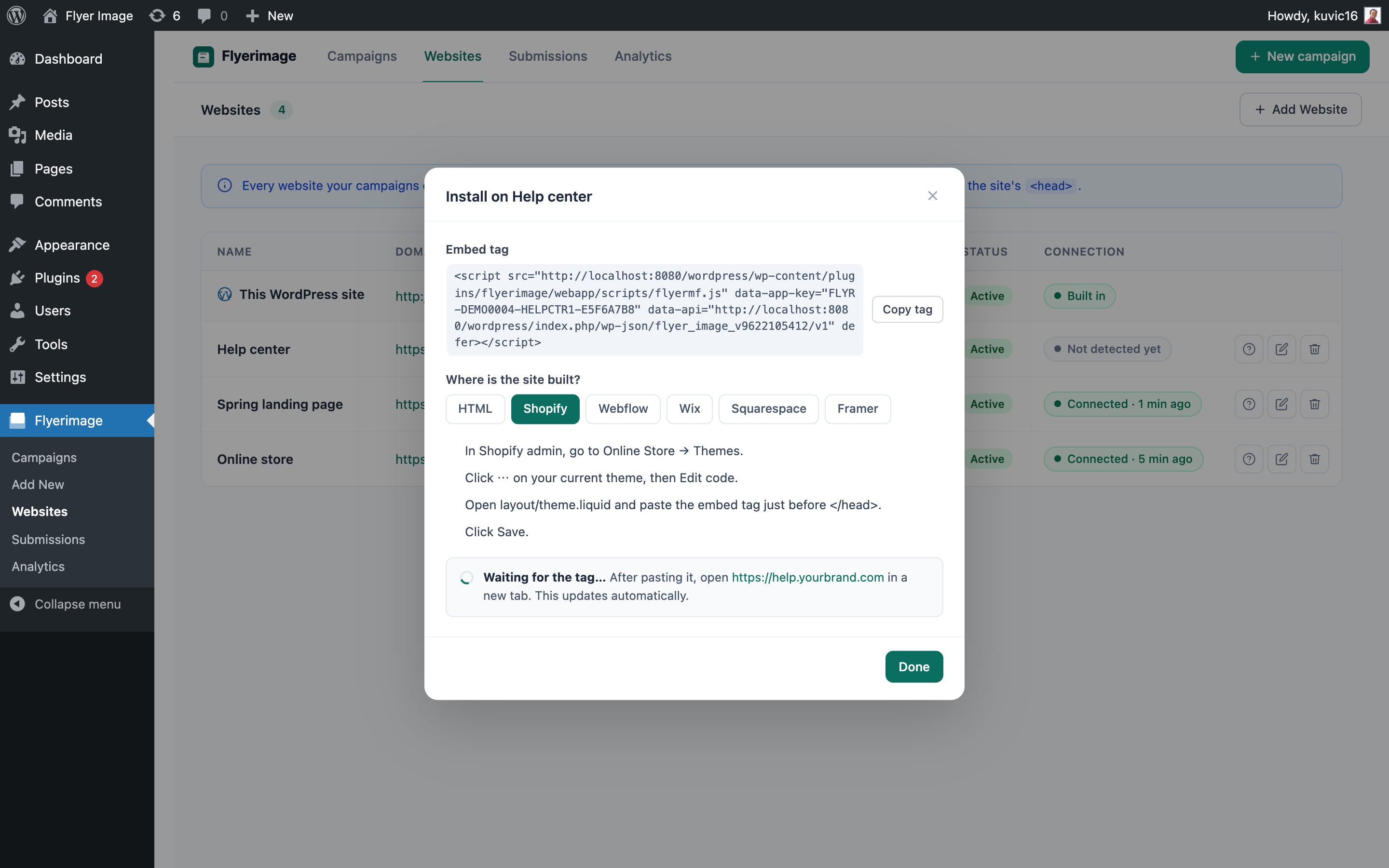
Add a website, copy its one-line embed tag, and paste it into that site’s <head>. Your campaigns appear there with the same targeting rules and analytics.
- Works on Shopify, Webflow, Wix, Squarespace, Framer, Carrd, and static HTML
- No WordPress needed on the other site
- Connection status shows whether each site’s tag is installed and when it was last seen
- Choose per campaign: this WordPress site, other websites, or both
- Pause a website any time without touching its code
Design without code
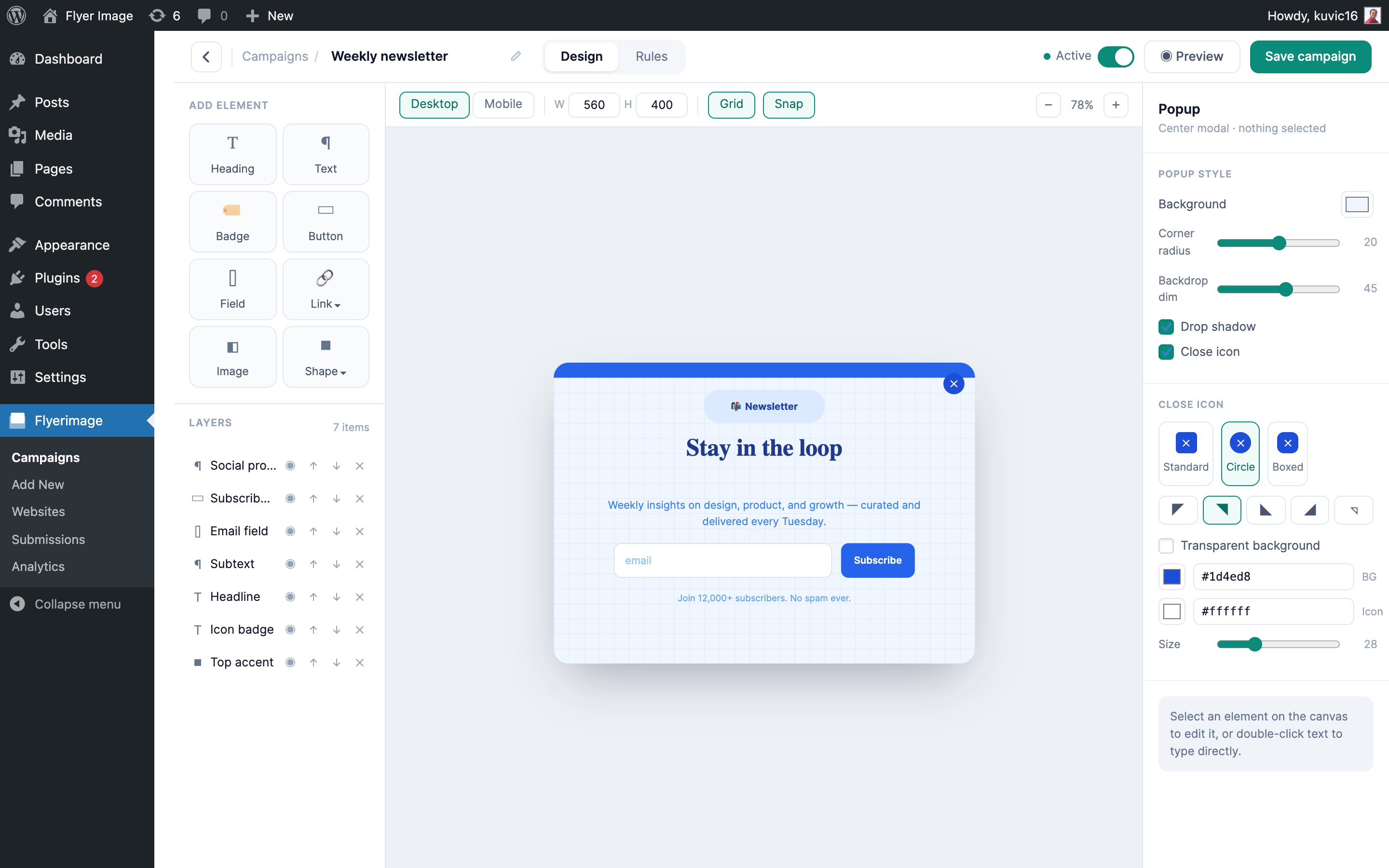
- Free-position drag-and-drop editor with separate desktop and mobile layouts
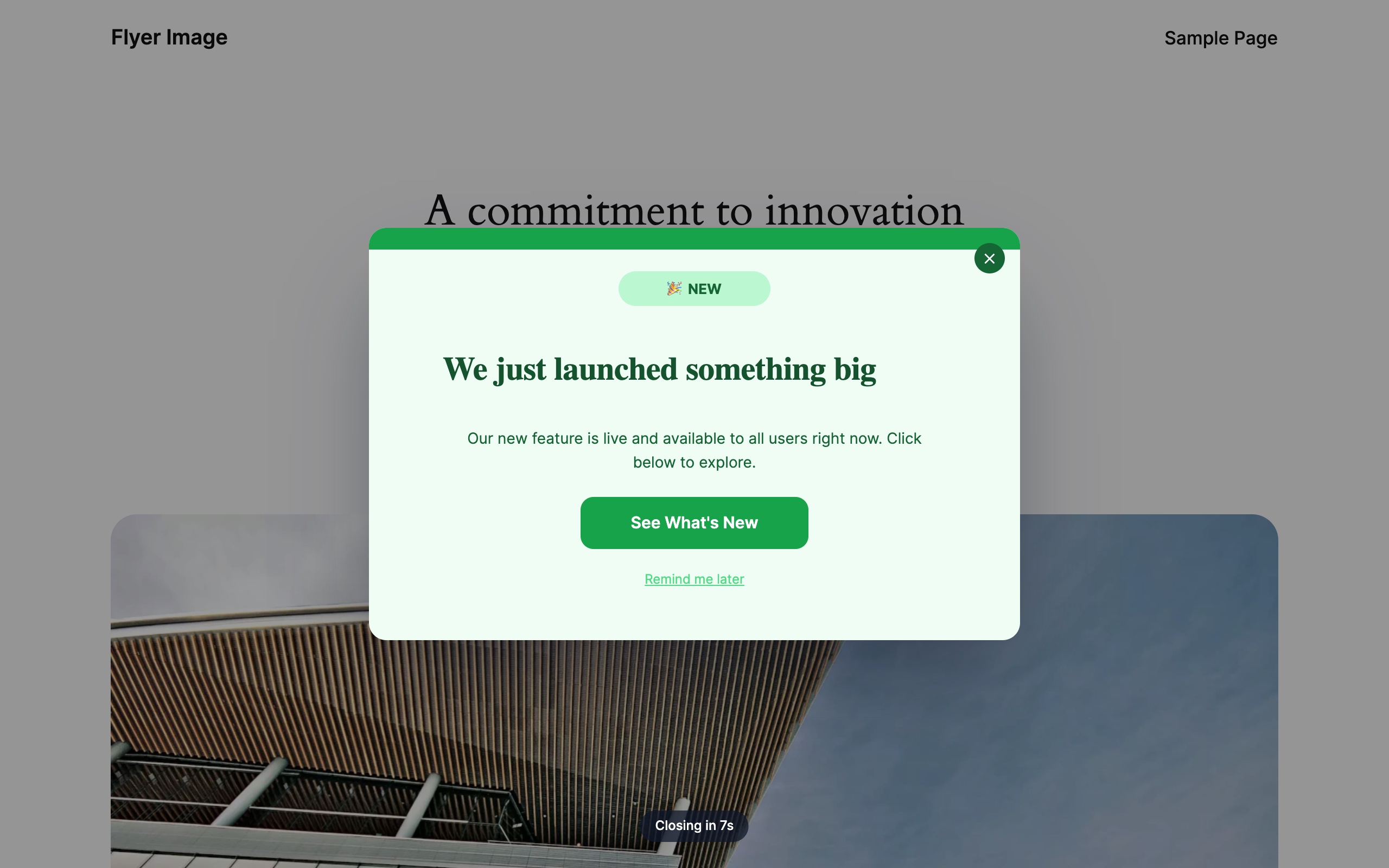
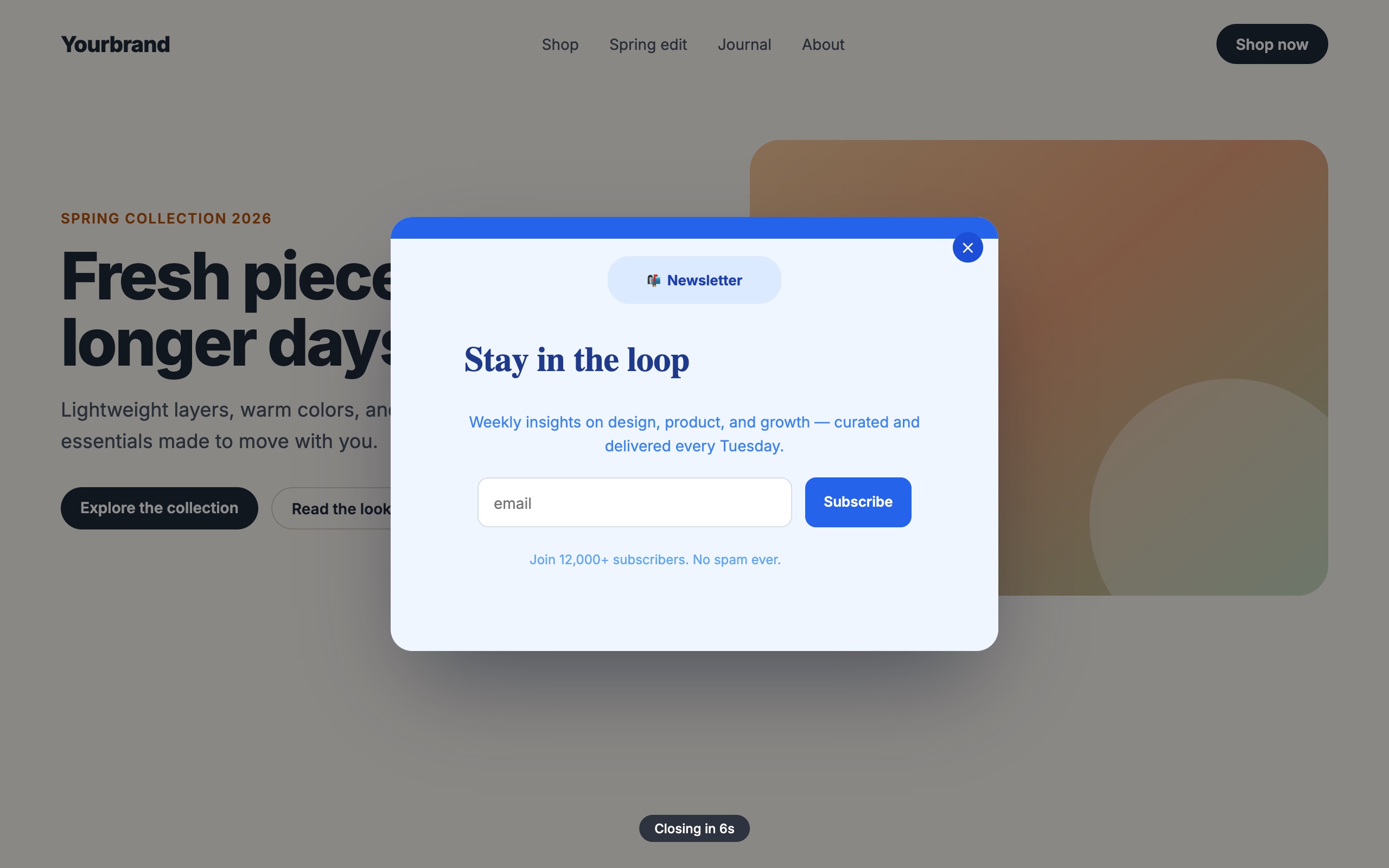
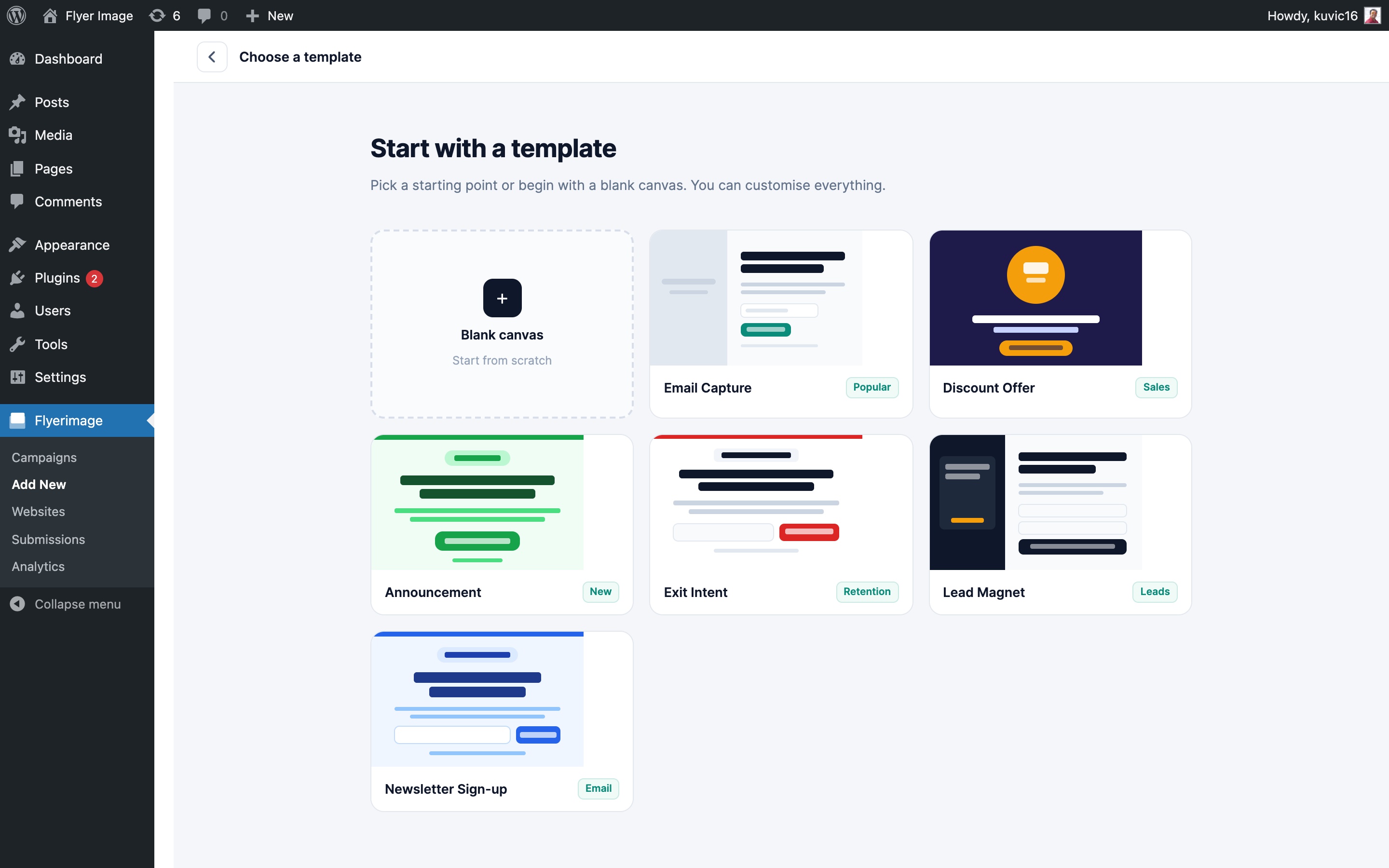
- 6 starter templates: Email Capture, Discount Offer, Announcement, Exit Intent, Lead Magnet, Newsletter Sign-up
- 9 elements: heading, text, badge, button, form field, image, shape, link button, and text link
- 13+ shapes, 4 close-button styles, and an optional auto-close countdown
Show it to the right people
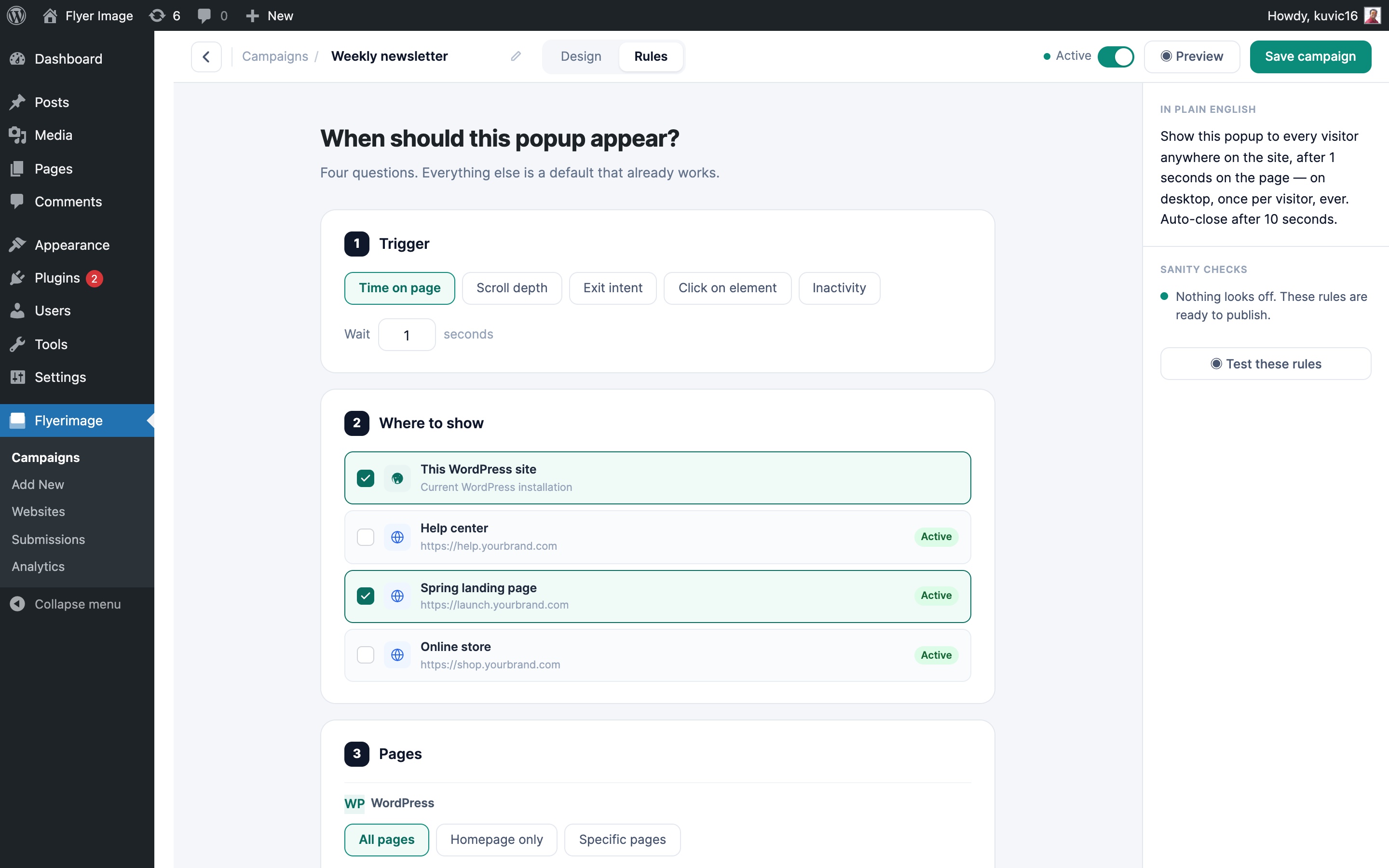
- 5 triggers: time on page, scroll depth, exit intent, click on an element, or inactivity
- Target all pages, the homepage, or specific pages
- Show to first-time visitors, returning visitors, or everyone
- Target desktop, tablet, or mobile
- Show once per visitor or every visit
Capture leads and measure results
- Form fields capture emails and other details, with honeypot and rate-limit spam protection
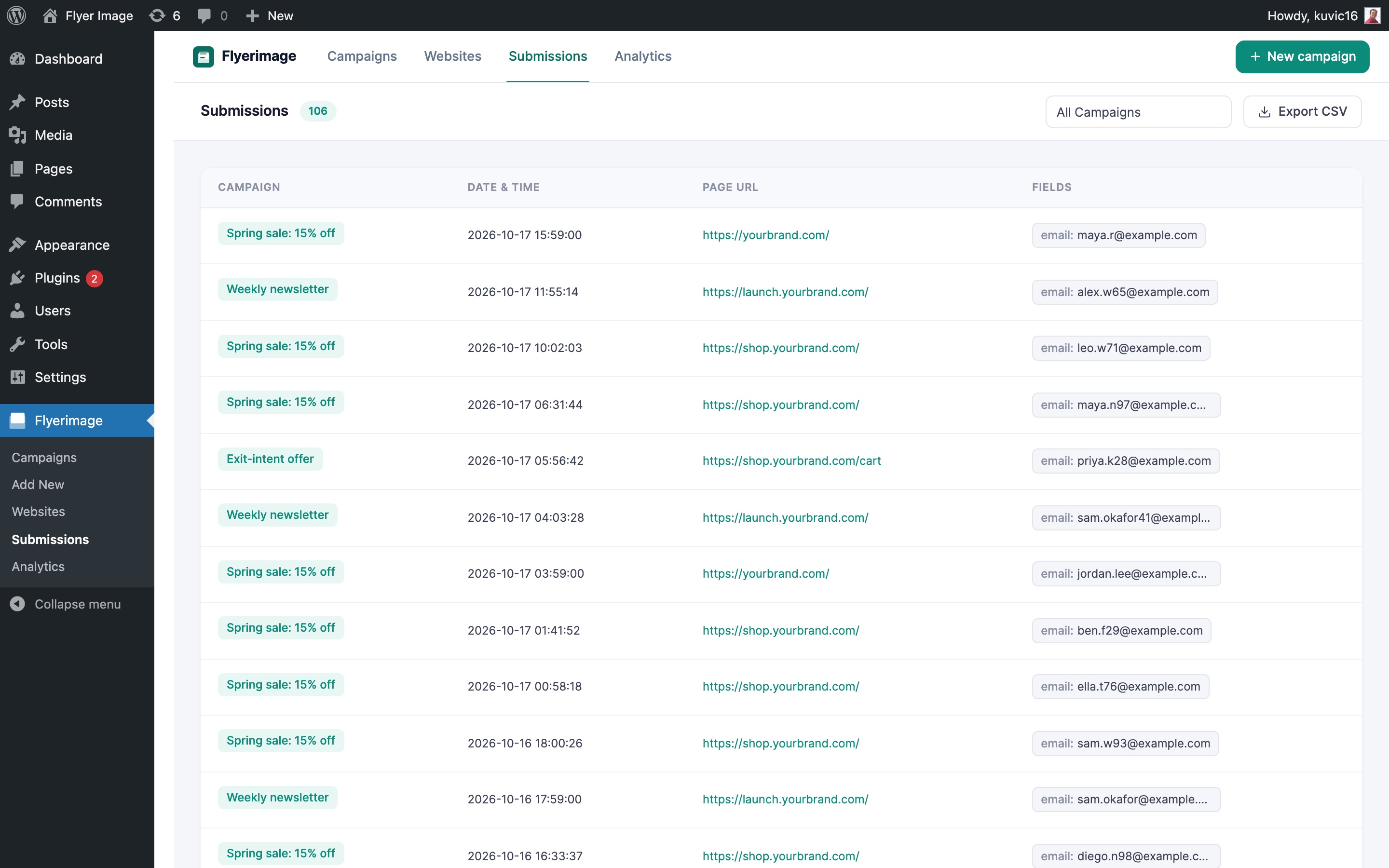
- Submissions log with a campaign filter and CSV export
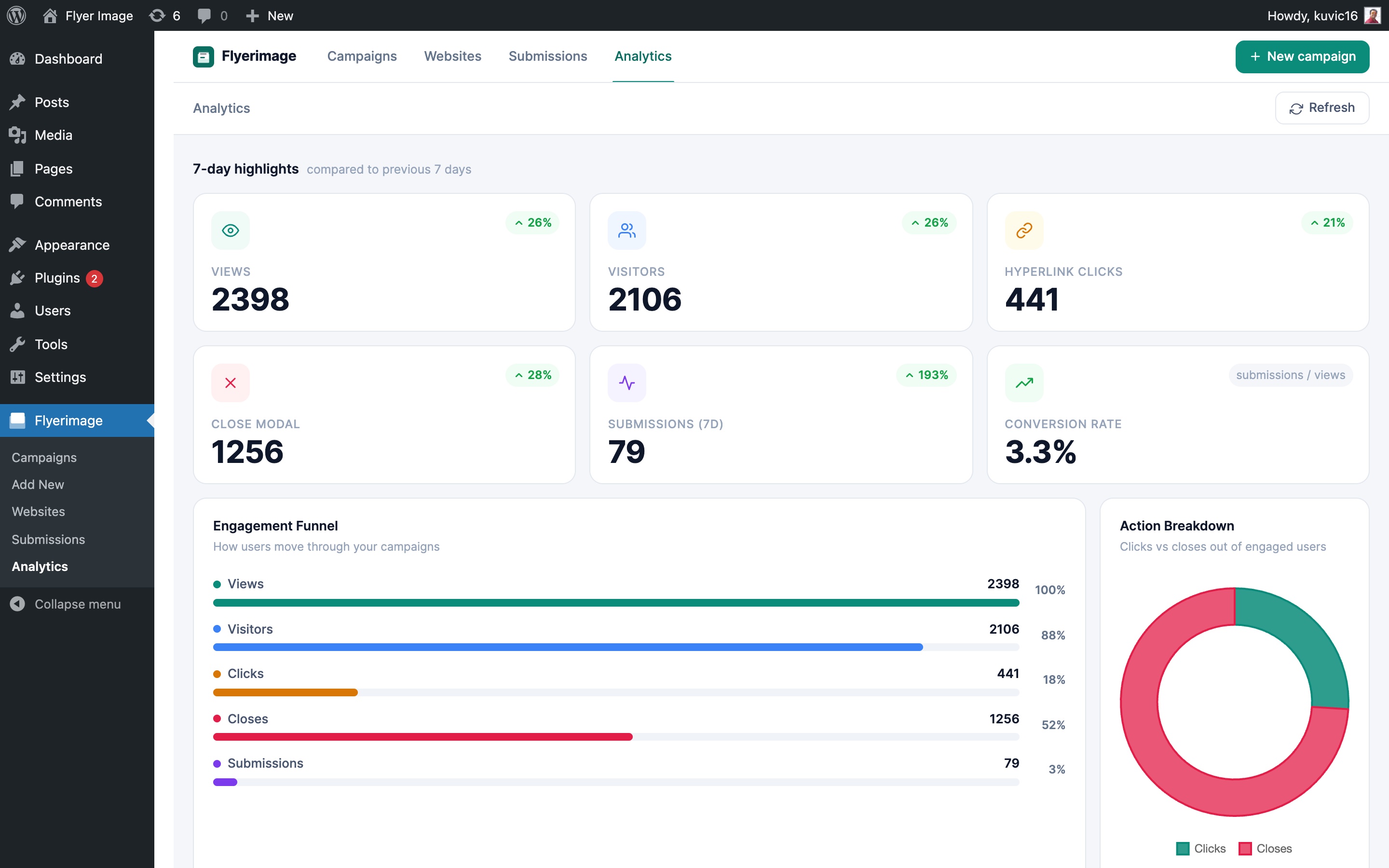
- Per-campaign analytics: views, visitors, clicks, closes, submissions, conversion rate, and device split
- Site-wide dashboard comparing every campaign
External services
Lemon Squeezy (licence activation)
Flyerimage connects to the Lemon Squeezy API (https://api.lemonsqueezy.com) only when a site administrator activates or deactivates a licence key. It sends the licence key and the site name (on activation) or the licence key and instance ID (on deactivation). No other data is sent, and nothing is sent unless an administrator takes that action.
Terms of service: https://www.lemonsqueezy.com/terms
Privacy policy: https://www.lemonsqueezy.com/privacy
Your own WordPress site (external-site embed tag)
When you add the embed tag to an external website, that website’s visitors load the Flyerimage script and campaign data from your own WordPress site, not from a third party. The request includes the site’s app key and the visitor’s time zone. Popup views, clicks, and closes are recorded on your WordPress site with the visitor’s IP address, device, browser, and page URL. Country is looked up locally from a bundled database; no geolocation service is contacted.
License
Flyerimage is free software, licensed under the GPLv2 or later.
License URI
https://www.gnu.org/licenses/gpl-2.0.html
Screenshots

Installation
- In your WordPress admin, go to Plugins Add New, search for „Flyerimage”, then click Install and Activate.
- Open Flyerimage in the admin menu and click New campaign.
- Pick a starter template or a blank canvas, design your popup, and set its rules.
- Click Save campaign. While the campaign is Active, the popup shows on this WordPress site.
- Optional: go to Flyerimage Websites, add another website, and paste its embed tag into that site’s
<head>. The connection status turns green once the tag is detected.
FAQ
-
Is Flyerimage free?
-
Yes, Flyerimage is completely free. Install it directly from the WordPress plugin directory and start creating campaigns immediately — no account or licence key required.
-
Can I show Flyerimage popups on a site that isn’t WordPress?
-
Yes. Go to Flyerimage Websites, add the website, and copy its embed tag. Paste the tag into the site’s
<head>and any campaign targeting that site will appear there. -
Do I need WordPress installed on the external site?
-
No. The external site only needs the one-line script tag. Campaigns are designed and managed from your WordPress dashboard and served to the external site.
-
How do I know the embed tag is installed correctly?
-
Each website in Flyerimage Websites shows a connection status. It changes from „Not detected yet” to „Connected” the first time someone opens a page with the tag. It also warns you if the tag is running on a different domain than the one you entered.
-
How do I add Flyerimage to Shopify?
-
In Shopify admin go to Online Store Themes Edit code, open
theme.liquid, and paste the embed tag just before</head>. Save, then enable the site in your campaign’s rules. -
How do I add Flyerimage to Webflow?
-
Open Site settings Custom code, paste the embed tag into the Head code box, save, and publish the site.
-
How do I add Flyerimage to Wix or Squarespace?
-
Wix: Settings Custom code Add code, place it in Head on all pages. Squarespace: Settings Advanced Code injection Header. Paste the embed tag and save.
-
Can one campaign run on WordPress and an external site at the same time?
-
Yes. In the campaign’s Rules tab, keep WordPress checked and select the external sites you want. You can also target external sites only.
-
What happens if I set an external site to Inactive?
-
Popups stop showing on that site straight away. The site stays in your list and keeps its embed tag, so you can turn it back on later without touching the external site’s code.
-
Do I need to know how to code?
-
No. The v3 canvas editor is fully drag-and-drop. You can design, target, and launch a popup campaign entirely from the admin dashboard without touching a single line of code.
-
How do I create my first popup campaign?
-
Go to Flyerimage in your WordPress admin, click Add Campaign, choose a starter template or start from a blank canvas, design your popup, set your targeting rules on the Rules tab, then click Publish. Your popup will go live immediately.
-
What starter templates are available?
-
Flyerimage ships with 6 ready-made templates: Email Capture, Discount Offer, Announcement, Exit Intent, Lead Magnet, and Newsletter Sign-up. Each template is fully editable.
-
What types of elements can I add to my popup?
-
You can add 9 element types: Heading, Text, Badge, Button, Form Field, Image, Shape, Link Button, and Link Label. Shapes come in 13+ variants for decorative accents.
-
Can I capture email addresses and form submissions?
-
Yes. Add a Field element to your popup and Flyerimage will capture submissions automatically. All submissions are stored in the Submissions log where you can filter by campaign and export to CSV.
-
How is spam prevented in form submissions?
-
Flyerimage uses a honeypot hidden field and IP rate limiting (maximum 10 submissions per IP per hour) to block spam without requiring a CAPTCHA.
-
What trigger options are available?
-
You can trigger a popup by: Time on page, Scroll depth, Exit intent, Click on a specific element, or Inactivity. Each trigger is configured in plain English on the Rules tab.
-
Can I show a popup only on specific pages?
-
Yes. The Pages rule lets you show a popup on All pages, the Homepage only, or specific pages you select individually.
-
Can I target specific audiences or devices?
-
Yes. Set the Audience filter to First-time visitors, Returning visitors, or Everyone. Device targeting lets you restrict the popup to Desktop, Tablet, Mobile, or any combination.
-
How do I control how often the popup appears?
-
Use the Frequency setting to show the popup once per visitor or on every visit.
-
Can a popup close itself automatically?
-
Yes. Enable Auto-close in the popup style settings and set a delay in seconds. A countdown pill is shown to visitors, and the popup closes itself when the timer reaches zero.
-
What close icon styles are available?
-
Four styles: Standard, Circle, Boxed, and Corner. Choose the one that fits your popup design.
-
Can I see how my campaigns are performing?
-
Yes. Each campaign has its own analytics page showing Views, Unique Visitors, Clicks, Closes, Submissions, Conversion Rate, an Engagement Funnel, device split, and a Views Over Time chart. There is also a site-wide analytics dashboard with 7-day KPI highlights and a Campaign Performance comparison chart.
-
Can I duplicate an existing campaign?
-
Yes. Open the action menu on any campaign in the list and choose Duplicate. The new campaign is created as a draft copy you can edit freely.
-
Does Flyerimage work with caching plugins?
-
Yes. Flyerimage is compatible with popular caching plugins. The popup script loads asynchronously and does not interfere with page caching.
-
What are the minimum requirements?
-
WordPress 5.0 or higher and PHP 8.0 or higher.
Reviews
There are no reviews for this plugin.
Contributors & Developers
“Flyerimage” is open source software. The following people have contributed to this plugin.
Contributors
Translate “Flyerimage” into your language.
Interested in development?
Browse the code, check out the SVN repository, or subscribe to the development log by RSS.
Changelog
3.0.4
Added
* Connection status for each external website — „Connected”, „Not detected yet”, or „Last seen” — and a warning when the tag runs on a different domain
* Install guide shows a live „Waiting for the tag…” status that turns to Connected as soon as the site loads the tag
* Flyerimage submenus in the WordPress sidebar: Campaigns, Add New, Websites, Submissions, Analytics
* Shared navigation bar across Campaigns, Websites, Submissions, and Analytics
Changed
* „External Sites” is now „Websites”, with this WordPress site always listed first
Fixed
* Database updates now run after a plugin update, not only on activation. Sites that updated to 3.0.2 or 3.0.3 from the dashboard were missing the external-sites tables
* Websites table no longer hides the Edit and Delete buttons on narrower screens
* Analytics now counts link clicks on popups built with the canvas editor; they always showed 0 before
* Connection status no longer shows „Seen on null” for sites loaded inside sandboxed frames
3.0.3
Fixed
* 3.0.2 loaded its own copy of jQuery on every admin and front-end page, which replaced WordPress’s jQuery and broke other plugins (e.g. „Cannot read properties of undefined (reading ‚mouse’)” and Elementor errors). The bundled jQuery is now only used by the external-site embed, and only on sites that don’t already have jQuery.
3.0.2
Added
* External sites — run the same campaigns on Shopify, Webflow, Wix, Squarespace, Framer, or any HTML site with a one-line embed tag
* Per-campaign platform targeting: WordPress only, external sites only, or both
* Active/Inactive switch for each external site
* Install guide with step-by-step instructions for each platform, shown right after adding a site
* Platform column in the campaign list (WP / External)
Fixed
* Security: external-site lookup now uses a parameterised query
* A WordPress campaign no longer gets hidden by an external-only campaign
* „Closing in N seconds” countdown now disappears when the popup is closed with the ✕ button
* Campaign action menu now closes when clicking outside it
* Action menu column no longer cut off in the campaign list
* Caching issue with campaign updates
Changed
* Removed the Audience column from the campaign list
3.0.0
Added
* v3 canvas editor — free-position drag-and-drop popup designer with heading, text, badge, button, field, image, shape, link button, and link label elements
* Link Button element — styled button that opens a URL in a new tab
* Link Label element — inline text link with optional underline; setting href to # closes the popup
* Per-campaign analytics page — views over time chart, funnel, device split, top pages, and submission log
* Views (10d) column in campaign list now links directly to campaign analytics
* Anti-spam protection for form submissions — honeypot field and IP rate limiting (10/hour)
* 6 starter templates: Email Capture, Discount Offer, Announcement, Exit Intent, Lead Magnet, Newsletter Sign-up
* Auto-close countdown pill now clears immediately when popup is closed via any action
Improved
* Analytics page: submissions KPI card, conversion rate card, submissions funnel step, and per-campaign submission counts in the campaign table
* Views vs Visitors chart changed to smooth line chart
* Real-time canvas updates — content field now updates on every keystroke
2.3.2
Added
* Image shadow customization support
* Shape shadow customization support
* Duplicate campaign functionality
* Size editing support for individual components
* Improved component editing controls
* Responsive mobile layout fallback (desktop design copied to mobile automatically)
Fixed
* Activate label displaying as @@Activate in campaign list row actions
2.3.1
- Fixed modal size issue in edit mode
2.3.0
- Added 2 starter templates (Announcement, Event)
- Added 13 shape elements
- Added multiple close icon styles
- Improved campaign builder UX and element controls
- General UI improvements
2.2.0
Added
– Rectangle element added to toolbox
– Display target options (All Pages / Homepage Only)
– Move element forward and backward controls
– Background color support for canvas
– Tip modal and contextual canvas guidance
Improved
– Toolbar redesigned for better usability
– Left panel layout and sizing improvements
– Canvas spacing and placement refinements
– Hover shadow effects on components
– Background image options with scroll support
– Text component styling enhancements
Fixed
– Caching-related rendering issue resolved
– Saving issue fixed
– Duplicate item removal bug fixed
– Minor UI inconsistencies and spacing corrections
2.1.0
- Automatically copy desktop layout to mobile by default
- Fixed issue when saving multiple selected pages
- Added background color option for campaigns
- Improved Preview button placement
- Minor i18n improvements
2.0.0
- Updated minimum PHP requirement to PHP 8.0
- Renamed “Flyers” to “Campaigns” across the plugin UI
- Improved campaign list and empty-state experience
- Enhanced onboarding clarity for first-time users
- General UI and stability improvements